Tesco Payslip View – Check Tesco Salary Slips (+ Item Explanations).
Everything Tesco colleagues need to know about accessing, reading, and understanding their payslips in 2026-2027 — from the My Tesco Colleague app to OurTesco, payslipview.com, Ireland payslips, and what every line on your payslip actually means.
Where to Find Your Tesco Payslip in 2026
Tesco has been migrating its payslip systems over the past couple of years and in 2026 the landscape is clearer than it’s been. The short version: the My Tesco Colleague app and the OurTesco website are now the primary ways to access your payslips. The older systems — Work & Pay and Payslipview.com — are being phased out, and many colleagues have already found those routes no longer work reliably.
Here is a quick overview of all the current access routes depending on where you are and what role you’re in:
| System | Who It’s For | Status in 2026 | URL / App |
|---|---|---|---|
| My Tesco Colleague App | UK colleagues | Active — Primary | App Store / Google Play |
| OurTesco (ourtesco.com) | UK colleagues | Active — Primary | ourtesco.com/experience |
| Payslipview.com | UK colleagues (legacy) | Being phased out | payslipview.com |
| Work & Pay | UK colleagues (legacy) | Being phased out | Via OurTesco portal |
| Tesco Ireland Payslips | Republic of Ireland colleagues | Active | tescoirelandpayslips.com |
Migration note for 2026Many colleagues have reported that Work & Pay payslips vanished suddenly. This is part of Tesco’s planned migration to OurTesco and the My Tesco Colleague app. There was also speculation on Reddit that Oracle’s systems (which power Work & Pay) may have been affected by a security incident, accelerating the move. Either way, if your old access route has stopped working, the app and OurTesco are the answer.
My Tesco Colleague App — Download, Login & Finding Your Payslip
The My Tesco Colleague app is now the main way most UK Tesco colleagues access their payslips, rotas, and other HR documents including their P60. It replaced much of what Work & Pay used to do and is actively maintained and updated by Tesco.
How to Download the My Tesco Colleague App
- On iPhone / iPad: Open the App Store, search “My Tesco” or “Tesco Colleague”, and download the app published by Tesco PLC. Make sure it is the official Tesco app — check the developer name.
- On Android: Open Google Play, search “My Tesco” and download the official app. You can also find it by searching “OurTesco”.
- Alternatively, go to ourtesco.com from your phone’s browser and follow the link to download the app.
How to Log In to the My Tesco Colleague App
- Open the app and tap Sign In. You will be asked for your Tesco colleague email address and your OurTesco password. Your colleague email address is usually in the format [email protected] or [email protected] — ask your manager or store admin if you are unsure.
- If this is your first time, tap Register or Create Account. You will need your colleague number (on your contract and on any paper payslip you have received) and your date of birth to verify your identity.
- Forgotten your password? Use the Forgot Password link on the sign-in screen. A reset link will be sent to your Tesco colleague email. If you cannot access your colleague email either, speak to your store manager or admin who can reset your access via the People system.
- Two-factor authentication may be required. Have your registered mobile number handy to receive a verification code.
How to Find Your Payslip in the My Tesco App
- Once logged in, tap the three lines (hamburger menu) in the top right corner of the screen.
- Scroll down and tap Documents.
- Tap Pay. Your payslips will be listed here, most recent first. Tap any payslip to open or download the PDF.
- Your P60 is also located in this same Documents > Pay section at the end of each tax year. If you cannot find it, contact your manager as it should be available on the app.
Payslips on the app vs Work & PaySeveral colleagues on Reddit have noted that the payslip PDF available through the My Tesco app is slightly less detailed than the old Work & Pay version in some areas. However, it is still a valid PDF with your name, address, and full pay breakdown, and is accepted as proof of income for tenancy applications, mortgages, and similar. If a specific institution needs a more detailed version, contact Tesco HR directly — see the contact section below.
OurTesco Login — ourtesco.com/experience
OurTesco is Tesco’s colleague portal and can be accessed via browser as well as through the app. The direct payslip URL is ourtesco.com/experience/payslip/. This is the web-based equivalent of the payslip section in the app and uses the same login credentials.
How to Log In to OurTesco
- Go to https://www.ourtesco.com/experience in any browser.
- Enter your Tesco colleague email address and password and click Sign In.
- Once logged in, navigate to Documents > Pay in the left-hand menu or use the direct payslip link above.
- If you have not set up your OurTesco account yet, go to the OurTesco account help page at colleague-help.ourtesco.com for setup instructions.
Troubleshooting OurTesco Login Problems
- Cannot log in: Go to colleague-help.ourtesco.com and use the account help tools to reset your access.
- No payslips showing: Payslips typically appear on or shortly after payday. If it is past your expected payday and nothing is showing, contact your store admin or raise a pay query.
- Account locked: Multiple failed login attempts will lock your account. Use the colleague help page or ask your manager to reset it via the People system.
- New colleague: Your OurTesco access is usually set up during your first week. If you have not received your login details, speak to your store manager or admin.
Payslipview.com — What Is Happening to It in 2026
Payslipview.com was the original digital payslip system for Tesco colleagues and many colleagues still know it as their go-to for payslips. In 2026, this system is in the process of being phased out in favour of the My Tesco app and OurTesco. Many colleagues have reported that their payslips are no longer accessible via Payslipview.com, or that the login simply does not work any more.
Payslipview.com Login Details (While Still Active)
If Payslipview.com is still working for your account, the login is at www.payslipview.com. You need your activation code, which was originally sent to you when you first registered. To obtain or reset an activation code while the system is still active:
- Call the Payslip Helpline: 01462 652 397 (or internal extension 7891 65397). Open Monday to Friday, 8am to 5pm.
- Alternatively email [email protected]
Important: Start using the My Tesco app nowDo not rely on Payslipview.com as your main payslip route in 2026. Tesco’s migration away from this system is ongoing and access may stop working without warning. If you have not already set up the My Tesco Colleague app or OurTesco access, do it now before you need a payslip urgently — for a flat application, a mortgage, or a tax query.
Work & Pay — Being Phased Out
Work & Pay was Tesco’s Oracle-based HR and payroll self-service platform. Colleagues used it for payslips, holiday bookings, and shift management. As of 2026, Work & Pay is being actively phased out across the business. The payslip function has moved to the My Tesco app and OurTesco. Some other Work & Pay functions have moved to the main OurTesco portal.
If you still have access to Work & Pay and can see historical payslips there, download any you need now as a backup. There is no confirmed date for when access will end completely, but based on the migration pattern seen over the past year, it is safer to assume it could stop at any time. Historical payslips that were on Work & Pay should have migrated to OurTesco — if you cannot find older payslips on the app, contact your store admin or HR.
There was discussion on Reddit that the sudden disappearance of payslips from Work & Pay in late 2023 and 2024 may have been related to Oracle’s systems being affected by a security incident, which may have accelerated the migration timeline. Tesco has not confirmed this publicly, but the practical reality is the same: the old system is going away and the app is the replacement.
Tesco Ireland Payslips — Complete Guide
Tesco Ireland operates a completely separate payslip system from UK colleagues. If you work for Tesco in the Republic of Ireland, you do not use the My Tesco app or OurTesco for payslips. Instead, you use the dedicated Ireland payslip portal at tescoirelandpayslips.com/mobile/login.aspx.
How the Tesco Ireland Payslip System Works
The Ireland system requires an activation code before you can set up your digital access. This is an important difference from the UK system and catches a lot of new starters out. Here is how it works:
- Your first payslip is paper-based and is sent to your store. This paper payslip contains your activation code which you need to register for the online system. Your manager or store administrator can print it for you — ask them directly.
- The activation code is only generated after your first payday. Until you have been through at least one pay cycle with Tesco Ireland, no activation code exists for you in the system. You cannot set up digital access before your first payday — this is by design, not a bug.
- Once you have your activation code from your paper payslip, go to tescoirelandpayslips.com/mobile/login.aspx and follow the registration steps to set up your digital access.
- After registration, all future payslips will be available digitally through the same portal.
Cannot Get Your Ireland Activation Code?
If your manager cannot print your first payslip or you are having difficulty getting the activation code, go to colleague-help.ourtesco.com, click Contact Us, and select Pay Queries. The team there can send you your payslip and/or activation code directly. This is the official recommended route for Ireland colleagues who are stuck.
Ireland colleagues: key things to knowYour first payslip goes to your store, not to you directly. Always ask your manager for it as soon as payday has passed — do not wait weeks before chasing it. The activation code on that payslip is what unlocks your entire digital payslip history going forward, so treat it carefully.
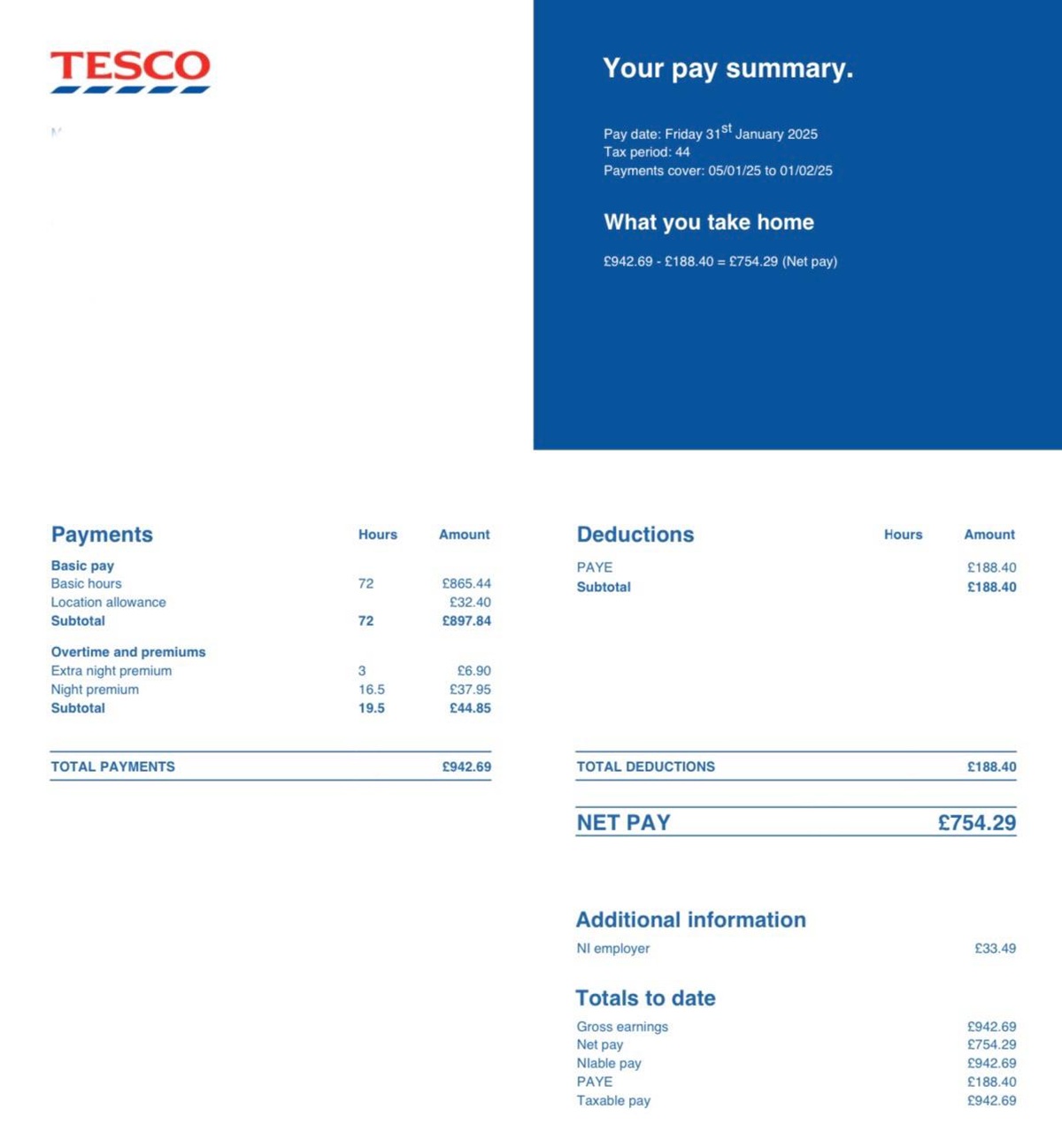
Your Tesco Payslip Explained — Every Line Decoded
Tesco payslips can look confusing the first time you see one. Multiple lines with names you have never heard of, deductions you did not expect, and hours that do not quite match what you thought you worked. This section goes through everything line by line, in plain English, based on real questions from Tesco colleagues on Reddit and other forums.
Basic Pay / Contracted Hours
Your basic pay is calculated from your contracted hours multiplied by your hourly rate. For example, if you are contracted for 20 hours per week at £12.64 per hour, your basic monthly pay will reflect approximately 20 hours x 4.33 weeks. This is what you get every month regardless of what additional shifts you work — it is your guaranteed base.
Overtime
Any hours you work above your contracted hours are paid as overtime. As of 2026, Tesco’s standard overtime rate is £12.64 per hour — the same as base pay for most non-premium grades. Overtime is not paid at a higher rate automatically — what makes it different from base pay is simply that it is hours above your contract. You will see this listed separately on your payslip, often labelled “Overtime” or “Additional Hours”. Note that overtime from shifts worked close to the payroll cutoff date (roughly one week before payday) may appear on the following month’s payslip rather than the current one.
Night Premium
If you work hours between midnight (12am) and 6am, you receive a night premium on top of your base hourly rate. This is currently approximately £2.35 extra per hour for those hours. So if you work a full shift between midnight and 6am, you receive your base rate plus £2.35 for every hour worked in that window, minus any break deductions. This will appear on your payslip as “Night Premium”.
Night Overtime Premium
If a night shift (midnight to 6am) is worked as overtime (i.e. it was above your contracted hours), you will see a “Night Overtime Premium” line on your payslip. This is the same £2.35ish per-hour premium applied to the overnight portion of an overtime shift. It is separate from regular night premium to distinguish contracted overnight hours from overtime overnight hours.
Extra Night Premium
This is a bonus that many colleagues find confusing. For every full night shift worked (midnight to 6am), you receive an extra bonus equivalent to one hour’s pay (approximately £7.05 at the 2026 rate including the night premium, or roughly £2.35 as the pure extra amount depending on how your store calculates it). So if you work six full night shifts, you get six of these bonuses. Three night shifts each for two people sharing shifts, for example, gives each person three extra hour bonuses. This appears on your payslip as “Extra Night Premium”. Think of it as a thank-you bonus for working nights — over and above the per-hour night premium.
Break Deductions
Breaks at Tesco are unpaid, and the system automatically deducts break time from your hours. The rules are:
- A 6-hour shift has 0.50 hours (30 minutes) deducted for your break. So a 6-hour shift pays 5.5 hours.
- A 5.5-hour shift has 0.25 hours (15 minutes) deducted — unless you are under 18, in which case the deduction is 0.50 hours (30 minutes).
- Shifts under the threshold for a break entitlement have no break deduction.
This is why your paid hours on your payslip will always look slightly less than your scheduled hours. It is not an error — it is the standard unpaid break deduction.
Induction Pay
If you see a line called “Induction” on your payslip, this is simply the pay for the hours you spent doing your store induction when you first joined. It is paid at your standard hourly rate (£12.64 for most colleagues). It appears as a separate line because it is processed slightly differently in the payroll system rather than as a standard shift.
Location Pay
Some Tesco colleagues receive a Location Pay supplement. This is an additional amount per hour paid to colleagues working in certain higher cost-of-living locations, typically in and around London and some other major cities. The amount varies but is typically 25p to 40p per hour on top of the standard rate. Not all colleagues receive this — it depends entirely on which store you work at. If you see it on your payslip, it means your store is in a designated location pay zone.
Contracted Hours Payroll Adjustment
This line appears most often on the payslips of new starters. If your contract started mid-week, Tesco’s payroll system always pays you a full contracted week on your first payslip — even if you only worked part of that first week. The contracted hours payroll adjustment is the correction that brings everything back into balance in the following pay period. It can sometimes make your second or third payslip look odd, but it is normal and expected. Think of it as the payroll system settling itself after an unusual start date.
Tax Code
Your tax code is shown on your payslip and tells Tesco’s payroll how much income tax to deduct. The most common tax code for UK workers in 2026 is 1257L, which means you have a personal allowance of £12,570 before you pay income tax. If your code is different — for example if it has a W1 or M1 suffix, or is on an emergency code — it may mean HMRC has not yet received your starter information from Tesco. Check your code against the HMRC tax codes guide and contact HMRC directly or your store admin if you think it is wrong.
National Insurance (NI) Deductions
National Insurance contributions are deducted automatically based on your earnings. You will see both your own NI contribution (the employee amount) and sometimes a reference to the employer NI contribution (though this does not come out of your pay — it is paid separately by Tesco). Your NI category letter is also shown on your payslip — most colleagues will be category A or category M (if under 21).
Pension Deductions
If you are enrolled in Tesco’s pension scheme (auto-enrolment applies to eligible colleagues), you will see a pension deduction on your payslip. Tesco contributes on top of this — your payslip shows your own contribution only. If you believe you should be in the pension scheme but are not seeing a deduction, speak to your store admin or contact Tesco’s pension team.
Corrections
A “Corrections” line on your payslip means the payroll system has made an adjustment for a previous underpayment or overpayment. This could be unpaid leave that was later resolved, overtime that was missed in a previous period, or an administrative correction. Corrections can be positive (extra money owed to you) or negative (money that was overpaid previously being recovered). If you see a corrections line you do not understand, ask your store admin or raise a pay query.
Your First Tesco Payslip — What to Expect
Your first payslip as a new Tesco colleague will almost certainly look different from what you expected. This section covers the most common surprises new starters encounter, based on questions from real colleagues on Reddit and other forums.
It goes to your store first
Your very first payslip — both in the UK and Ireland — is typically issued as a paper payslip to your store rather than being available digitally. Ask your manager or store admin on or after your first payday. Do not assume it will just appear in the app on day one.
You get paid a full week even if you started mid-week
Tesco’s payroll system always pays a full contracted week on your first payslip, even if you only started partway through a week. This is not a mistake — it is called a contracted hours payroll adjustment and it is standard. The adjustment will self-correct over the following pay period.
Overtime may not appear
Any overtime or additional shifts worked close to the payroll cutoff date (roughly one week before payday) may not appear on your first payslip. They will roll into the following month. This is the standard Tesco payroll cutoff and applies to all colleagues, not just new starters.
Your tax code may be wrong
If Tesco does not yet have your P45 from your previous employer, or if HMRC has not yet updated their records, you may be placed on an emergency tax code for your first payslip. This means you pay more tax than necessary for that month. It usually self-corrects automatically within 1–2 pay cycles once HMRC processes your records. If it has not corrected after 3 months, contact HMRC directly.
Ireland: your paper payslip has your activation code
For Tesco Ireland colleagues, your first paper payslip contains the activation code you need to register for the digital payslip system at tescoirelandpayslips.com. Keep it safe — you need it to unlock all future digital access.
Final payslip if you leave
If you leave Tesco, your final payslip is posted to your home address on file. Make sure your address is up to date in the system before you leave. After your leaving date you will lose access to OurTesco and the app, so download any payslips you need before your last day.
How to Contact Tesco HR for Pay Queries
If something on your payslip does not look right, or you cannot access your payslip at all, here are the official routes to get help — both for UK colleagues and for colleagues in the Republic of Ireland.
UK Colleagues — Pay Query Routes
- Your store admin / wage clerk is always your first port of call. They have direct access to the payroll system and can resolve most pay queries quickly. Ask to fill in a pay query form in store.
- Your line manager can raise a pay query on your behalf through the People system if your store admin cannot resolve it.
- Colleague Help (OurTesco): colleague-help.ourtesco.com — Click Contact Us then Pay Queries. This connects you with Tesco’s central HR support team.
- Payslip Helpline (for Payslipview.com access issues): 01462 652 397 (internal: 7891 65397). Open Monday–Friday 8am–5pm.
- Email: [email protected] — for payslip access issues specifically.
Ireland Colleagues — Pay Query Routes
- Your store manager or store administrator is the first point of contact. They can print your payslip, provide your activation code, and raise pay queries internally.
- Colleague Help: colleague-help.ourtesco.com — Click Contact Us then Pay Queries. This works for Ireland colleagues too and the team can send your payslip and activation code if needed.
- Ireland Payslip Portal: tescoirelandpayslips.com/mobile/login.aspx — once set up, this is your main self-service route.
Always raise a pay query in writingWhenever you have a pay issue, ask for a pay query form and make sure it is logged formally. A verbal conversation with a manager is easy to forget or lose track of. A logged pay query creates a paper trail and is processed through the official payroll correction system, which means the fix is tracked and confirmed. If you are underpaid, a formal query is the fastest route to getting it corrected.
Tesco Payslip FAQ — 30 Questions Answered
These are real questions asked by Tesco colleagues on Reddit, forums, and the Tesco colleague help pages. Answered in plain English.
How do I get my Tesco payslip in 2026?
In 2026, the primary route is the My Tesco Colleague app, available on iOS and Android. Once logged in, tap the menu (three lines, top right), go to Documents, then Pay. You can also access payslips via browser at ourtesco.com/experience/payslip/ using your Tesco colleague login.
If you are in the Republic of Ireland, your payslip system is separate — go to tescoirelandpayslips.com/mobile/login.aspx. You need an activation code from your first paper payslip to register.
Payslipview.com and Work & Pay are being phased out — if those routes are no longer working for you, set up your My Tesco app access immediately. Do not wait until you urgently need a payslip.
Why have my payslips disappeared from Work & Pay?
Tesco is migrating away from Work & Pay (an Oracle-based system) and towards its own My Tesco Colleague app and OurTesco portal. Many colleagues found their payslips disappeared from Work & Pay suddenly in 2023 and 2024 as part of this migration. There was also speculation that Oracle’s systems were affected by a security incident, which may have accelerated the process.
Your historical payslips should have migrated to OurTesco. Log in at ourtesco.com/experience and check Documents > Pay for your payslip history.
If historical payslips are missing even from OurTesco, contact your store admin or raise a pay query via colleague-help.ourtesco.com. Tesco HR should be able to retrieve or reissue older payslips.
What is the Payslipview.com activation code and how do I get one?
The Payslipview.com activation code is a unique code that lets you register for the online payslip system. For UK colleagues, it was originally provided when you first joined Tesco and set up digital payslip access.
If you need a new or replacement code while Payslipview.com is still active, call the Payslip Helpline on 01462 652 397 (internal: 7891 65397), open Monday to Friday 8am to 5pm. You can also email [email protected].
However, given that Payslipview.com is being phased out in 2026, it is worth setting up the My Tesco Colleague app at the same time rather than relying on the old system going forward.
Why does my payslip show fewer hours than I worked?
There are two main reasons for this. First, break deductions: Tesco automatically deducts unpaid break time from your hours. A 6-hour shift has 30 minutes deducted, a 5.5-hour shift has 15 minutes deducted (or 30 minutes if you are under 18). This is standard and not an error.
Second, payroll cutoff: any overtime or additional shifts worked within approximately one week of your payday may not appear on the current payslip. Those hours will roll into the following month’s payslip. This is the standard Tesco payroll cutoff and applies to everyone.
If neither of these explains the discrepancy — for example if contracted hours are missing or a full shift has not been paid — raise a pay query with your store admin straight away. Do not assume it will sort itself out.
What is night premium on my Tesco payslip?
Night premium is an additional payment of approximately £2.35 per hour for hours worked between midnight (12am) and 6am. It is paid on top of your standard hourly rate and appears as a separate line on your payslip. So for a 6-hour overnight shift from midnight to 6am, you would receive 6 hours at your base rate plus 6 x £2.35 in night premium (minus any break deductions).
If the overnight shift was overtime (above your contracted hours), you will see it split into “Night Premium” (the per-hour supplement) and “Night Overtime Premium” (the same supplement but flagged as applying to overtime hours).
The premium only applies to the hours that fall within the midnight to 6am window. If your shift starts at 10pm and ends at 2am, only the 12am to 2am portion attracts the night premium.
What is the extra night premium on my Tesco payslip?
The extra night premium is a bonus equivalent to one additional hour’s pay for every complete overnight shift you work. It is separate from the standard per-hour night premium and is effectively a thank-you bonus for doing a full night shift. At current rates, this works out at approximately £7.05 per full night shift (your base rate plus the night premium rate).
So if you work six full night shifts in a pay period, you receive six extra night premium payments. If you and a colleague each do three full nights, you each receive three. It is calculated per complete overnight shift, not per hour.
If you are seeing this line and cannot reconcile the amount with the number of shifts you worked, check with your store admin — occasionally system errors result in this being miscalculated, and it is worth querying.
Why does my first Tesco payslip show more money than I expected?
If you started mid-week, Tesco’s payroll system pays you a full contracted week on your first payslip regardless of how many days you actually worked that first partial week. This is called a contracted hours payroll adjustment and is standard Tesco payroll practice — not an error and not a bonus.
The system will self-correct in the following pay period, which means your second payslip may be slightly lower to account for the adjustment. Do not spend the extra assuming it is permanent — it is essentially an advance on hours not yet worked.
If you are unsure whether what you have been paid is correct, take your payslip to your store admin and ask them to walk through it with you. This is a completely normal and reasonable request and a good admin will be happy to explain it.
What is “induction” on my Tesco payslip?
Induction pay is simply payment for the hours you spent doing your new starter induction when you joined Tesco. This includes any time spent on online training modules, store orientation sessions, or any other structured induction activity.
It is paid at your standard hourly rate (£12.64 for most colleagues in 2026) and appears as a separate line on your payslip because it is processed slightly differently in the payroll system — it is not attached to a specific shift in the rota in the same way a normal shift is.
You should only see this line on your first payslip or possibly your second. If it appears on later payslips, check with your store admin as it may be a payroll error.
What is location pay on a Tesco payslip?
Location pay is an additional hourly supplement paid to colleagues who work at Tesco stores in certain high cost-of-living locations, primarily in and around London and some other major cities. It is designed to help with the higher cost of living in those areas.
The amount varies by location but is typically between 25p and 40p per hour on top of the standard hourly rate. Not all colleagues receive location pay — it depends entirely on which store you work at and whether that store is in a designated location pay zone.
If you see location pay on your payslip and are not sure why, it is most likely because your store is in a zone that qualifies. If you think you should be receiving it but are not seeing it, raise this with your store admin as you may be missing out on pay you are entitled to.
What does “corrections” mean on my Tesco payslip?
A corrections line on your payslip means the payroll system has made an adjustment for a discrepancy in a previous pay period. This could be an underpayment (Tesco owes you money from a previous period and is paying it now), an overpayment being recovered (you were paid too much previously and it is being taken back), or an administrative correction such as a missed overtime shift or a holiday pay adjustment.
Corrections can be either positive (money added to your pay) or negative (money deducted). If the corrections line is negative and you are not sure why, always ask — you have a right to a clear explanation of any deduction from your pay.
Speak to your store admin or raise a pay query via colleague-help.ourtesco.com. Ask them to show you what the correction relates to and which pay period it corrects. A good admin will be able to trace it back to the original transaction.
When does Tesco release payslips each month?
Tesco pays monthly and payslips are typically made available on the app and OurTesco on or shortly before payday. The exact payday date varies by store and role but is usually around the last working day of the month or a set date each month. Check your contract or ask your store admin for the specific payday date for your store.
There is no exact time of day that payslips go live — it can vary. Some colleagues report seeing their payslip appear a day or two before the money arrives in their bank, others find it appears on the same day as payment.
If your payslip has not appeared within a day of your expected payday, check that your app is updated and try logging out and back in. If it is still missing after payday, contact your store admin or raise a query via the colleague help page.
Can I use my Tesco payslip as proof of income for a rental application?
Yes. The payslip PDF available through the My Tesco Colleague app and OurTesco is a valid payslip document containing your name, address, and full pay breakdown. It is accepted as proof of income and proof of address for most purposes including tenancy applications, mortgage applications, and benefit claims.
Some colleagues have noted on Reddit that the app-based payslip is slightly less detailed than the old Work & Pay version in certain areas. If a specific institution requires additional detail or a particular format, contact Tesco HR via colleague-help.ourtesco.com and request a formal payslip or earnings letter.
Download the PDF from the app and save it before your application. Do not just send a screenshot — the PDF is the official document. Most landlords and lettings agents will accept the PDF directly by email.
How do I find my P60 on the My Tesco app?
Your P60 is located in the same place as your payslips on the My Tesco app. Tap the three lines (menu) in the top right, go to Documents, then Pay. Your P60 for the most recent tax year should be listed there alongside your monthly payslips. P60s are issued annually after the end of the tax year (5th April) and typically appear on the app within a few weeks of that date.
If you cannot find your P60 in the app, contact your manager as they should be able to locate it. It may also still be accessible via OurTesco on the browser version — check ourtesco.com/experience/payslip/.
P60s are important documents for tax returns, benefit claims, and mortgage applications. Download and save yours as soon as it appears, and keep a copy somewhere safe outside the Tesco systems in case your access ever lapses.
My tax code looks wrong on my Tesco payslip. What should I do?
If your tax code looks wrong — for example you are on an emergency code (1257L W1 or BR), or a code that results in unusually high tax deductions — the first step is to check it against HMRC’s tax code guidance at gov.uk/tax-codes. The standard code for most UK employees in 2026 is 1257L.
Emergency tax codes are common for new starters whose P45 from a previous employer has not yet been processed, or where HMRC has not yet updated its records. This usually self-corrects within 1–3 pay cycles. If HMRC adjusts your code mid-year and you have overpaid tax, it will be refunded either automatically through your future payslips or via a rebate from HMRC at the end of the tax year.
If you believe your tax code is wrong and it has not corrected after 3 months, contact HMRC directly on 0300 200 3300. Tesco’s payroll team applies whatever code HMRC supplies to them — they cannot change your tax code themselves. Only HMRC can do that.
What is the payroll cutoff date at Tesco?
Tesco’s payroll cutoff is approximately one week before payday. Any hours worked after the cutoff — whether overtime, additional shifts, or other variable pay — will not appear on the current month’s payslip. They will roll into the following month’s pay instead.
This means that if you do a lot of overtime in the final week of the month, you will not see that pay until the month after. It is one of the most common sources of confusion for both new and experienced colleagues, particularly when overtime appears to be missing.
The exact cutoff date varies — ask your store admin for the specific cutoff for your pay period. Some stores post the payroll schedule in the staff room or on the noticeboard.
I cannot log in to OurTesco. What do I do?
First, try resetting your password using the Forgot Password link on the OurTesco login page. A reset link will be sent to your Tesco colleague email address. Make sure you are using your correct colleague email — usually [email protected] or a format using your colleague number.
If you cannot access your colleague email either, or if the password reset is not working, go to colleague-help.ourtesco.com and use the account help tools there. There is also an option to contact the HR support team directly from that page.
As a last resort, ask your store manager or admin to reset your access via the People system. This usually resolves login issues the same day and is often the quickest route if you need access urgently.
How do I get my Tesco payslip if I have left Tesco?
If you have already left Tesco, your final payslip is posted to your registered home address. Make sure your address was up to date in Tesco’s system before you left — if it was not, you may need to contact Tesco HR to have it resent.
You will lose access to the My Tesco Colleague app and OurTesco after your leaving date, so it is important to download all payslips and your P60 before your last working day. If you have already left and cannot access the app, contact colleague-help.ourtesco.com and explain you are a former colleague needing payslip copies.
For P60s, former employees can also contact HMRC directly if needed — HMRC holds employment income records and can confirm your earnings for the relevant tax year even if you no longer have payslip access.
Why does my Tesco payslip show unpaid leave?
Unpaid leave on a payslip can appear for several reasons. If you are a new starter who began mid-week, the payroll system sometimes logs the days before your start date in that first contracted week as unpaid leave while it settles the payroll schedule. This is a system artefact of the contracted hours adjustment and usually resolves itself in the following pay period.
It can also appear if you took authorised unpaid leave during the pay period, or if there was a processing error that resulted in certain hours being coded as unpaid rather than paid. If you did not take any unpaid leave and you are seeing this deduction, raise a pay query immediately via your store admin.
Do not ignore an unexpected unpaid leave deduction. If it is an error it will not self-correct without a pay query being logged, and the longer you leave it the harder it can be to reconcile.
What is the Tesco Ireland payslip activation code and how do I get it?
The activation code for the Tesco Ireland payslip system is a unique code that is generated after your first payday with Tesco Ireland. It does not exist before that point, which is why new starters cannot set up digital access until they have been through at least one pay cycle.
The code is printed on your first paper payslip, which is sent to your store. Ask your manager or store administrator to print it for you on or after your first payday. They may refer to it as your payslip or your digital access code.
If you are struggling to get the code from your store, go to colleague-help.ourtesco.com, click Contact Us, and select Pay Queries. The team there can email your payslip and activation code directly to you. This is the official recommended route for Ireland colleagues who are stuck.
How are break deductions calculated on a Tesco payslip?
Breaks at Tesco are unpaid and are automatically deducted from your hours by the payroll system. The standard rules are: a 6-hour shift has 30 minutes (0.50 hours) deducted; a 5.5-hour shift has 15 minutes (0.25 hours) deducted for most colleagues, but 30 minutes (0.50 hours) deducted if you are under 18. Shifts below the threshold that triggers a break entitlement have no deduction.
This means a 6-hour shift pays 5.5 hours, and a 5.5-hour shift pays 5.25 hours (or 5 hours if under 18). These deductions are automatic — you do not need to clock off for breaks separately in most stores.
If you think the break deduction applied to your hours is wrong — for example a deduction was applied to a shift that was too short to trigger a break entitlement — raise it with your store admin. These errors do happen occasionally and can be corrected via a pay query.
What is Work & Pay and can I still use it?
Work & Pay was Tesco’s Oracle-based HR and payroll self-service system. Colleagues used it to view payslips, book holiday, and manage some HR functions. In 2026, it is being phased out. The payslip and HR functions have migrated to the My Tesco Colleague app and the OurTesco portal.
Some colleagues may still have residual access to Work & Pay depending on their store and role, but it is not reliable and access may stop at any time. If you can still access it, use this time to download any historical payslips you need rather than relying on continued access.
The replacement for Work & Pay is the My Tesco Colleague app (for payslips, documents, rota view) and OurTesco (for a wider range of HR functions). Set both up now if you have not already done so.
What is the difference between night premium and night overtime premium on my payslip?
Night premium applies to the midnight-to-6am portion of any contracted shift — hours you are scheduled to work as part of your regular contract. It is approximately £2.35 extra per hour for those overnight hours.
Night overtime premium is the same rate but applied to the midnight-to-6am portion of a shift that is overtime — i.e. hours above your contracted hours. The payroll system separates them to distinguish contracted overnight hours from overtime overnight hours, even though the actual rate per hour is the same.
Both appear as separate lines on your payslip purely for transparency and payroll tracking. If the total amounts look wrong, add the two lines together and check that the combined total matches your expected overnight hours multiplied by the premium rate. If it does not, raise a pay query.
How do I raise a pay query at Tesco?
The best first step is to speak to your store admin or wage clerk and ask to complete a pay query form. This creates a formal record of your query in the payroll system and is the official channel for corrections. Your line manager can also raise a pay query on your behalf through the People system if needed.
If your store admin cannot resolve the issue or you are getting no response, go to colleague-help.ourtesco.com, click Contact Us, and select Pay Queries. This connects you with Tesco’s central HR pay team, who can investigate payroll errors that are beyond store-level resolution.
Always follow up in writing and keep a record of when you raised the query and who you spoke to. Pay errors must be corrected by law and Tesco has an obligation to resolve underpayments promptly. If you feel your query is not being taken seriously, you can escalate via your Union rep (USDAW is Tesco’s recognised union) or via the Acas helpline on 0300 123 1100.
Why is my Tesco overtime not on my payslip?
The most likely reason is the payroll cutoff date. Any overtime worked within approximately one week of your payday will not appear on the current payslip — it rolls into the following month. This is standard Tesco payroll practice and is not a bug or an error.
Check when the overtime shifts were worked relative to your payroll cutoff. Ask your store admin for the cutoff date for your current pay period. If your overtime shifts were worked before the cutoff and still do not appear, then it is worth raising a pay query.
Also double-check that the overtime was recorded correctly in the system. In some stores, overtime shifts need to be authorised by a manager before they are processed by payroll. If a manager forgot to authorise them, the hours may not have been submitted in time for the cutoff.
What does my Tesco payslip look like — what information is on it?
A standard Tesco payslip includes: your name and address; your colleague number; your tax code and National Insurance number; the pay period dates; your hourly rate and contracted hours; a breakdown of all earnings lines (base pay, overtime, night premium, extra night premium, location pay, induction pay etc.); all deductions (income tax, National Insurance, pension); and your net pay (the amount actually paid to you). It also shows your year-to-date earnings and deductions.
The version available on the My Tesco Colleague app is a PDF document. Some colleagues have noted it is slightly less granular than the old Work & Pay version in certain formatting areas, but all the core financial information is present and it is a valid payslip for all official purposes.
If you need a more detailed breakdown — for example for a tax investigation or a complex benefit claim — ask your store admin for a printed payslip or contact HR to request an earnings statement.
Are Tesco colleagues getting a pay rise in 2026?
Tesco has historically announced pay rate changes in early spring each year, typically taking effect from the start of the new financial year. For 2026, you should check the latest announcements via the My Tesco Colleague app or OurTesco, where Tesco publishes pay rate news for colleagues. USDAW, the union that negotiates pay on behalf of Tesco colleagues, also publishes updates on their website at usdaw.org.uk.
Pay rate changes will be reflected automatically on your payslip from the effective date. You do not need to do anything to receive a pay rise once it has been agreed — it will simply appear on your payslip for the relevant period.
If you believe a pay rise should have been applied but has not appeared on your payslip, check the effective date of the pay change first. If that date has passed and your rate has not updated, raise a pay query with your store admin.
How do I contact Tesco HR about a payslip issue?
For UK colleagues, start with your store admin or wage clerk — they are the fastest route for most payslip issues. If that does not resolve it, go to colleague-help.ourtesco.com, click Contact Us, and choose Pay Queries to reach the central HR pay team. For payslip access issues specifically, call 01462 652 397 or email [email protected].
For Ireland colleagues, the same colleague-help.ourtesco.com route applies. Your store manager or store administrator can also help with access issues and pay queries at store level.
Always log your query formally in writing — either via the online form or by completing a pay query form in store. Verbal conversations are easy to lose track of and do not create the audit trail you need if the issue is not resolved promptly.
Can I download my Tesco payslips as a PDF?
Yes. The payslips available through both the My Tesco Colleague app and the OurTesco website are PDF documents that you can download and save to your device. On the app, open the payslip and use your phone’s share or download function to save it. On the browser version, you can download the PDF directly from the payslip view.
It is a very good idea to download and save copies of your payslips regularly — at least once a month — rather than relying on Tesco’s systems always being available. System migrations (as we have already seen with Work & Pay) can result in historical payslips becoming temporarily or permanently inaccessible. Having your own local copies protects you.
Store your downloaded payslips somewhere secure — a password-protected folder or an encrypted cloud storage service. They contain sensitive personal and financial information and should be treated accordingly.
What is the Tesco colleague help page and what can it help with?
The Tesco colleague help page is at colleague-help.ourtesco.com. It is the official self-service and contact hub for all colleague HR queries, including pay queries, payslip access issues, account setup and reset, and other HR matters. It works for both UK and Ireland colleagues.
Through this page you can: reset your OurTesco login, set up your account for the first time, contact the central HR pay team about payslip errors or missing pay, request payslips or activation codes (for Ireland), and get general HR support. Many issues can be resolved through the self-service tools without needing to speak to anyone.
If you are struggling with any payslip issue and your store admin cannot help, the colleague help page should be your next port of call before escalating further. The team there have full access to payroll records and can investigate issues that go beyond what a store admin can see.
What is the difference between the My Tesco app and the OurTesco website?
The My Tesco Colleague app is a mobile application for iOS and Android. It gives you access to your payslips, rota, documents, and some HR functions on your phone. It is optimised for mobile use and is the most convenient route for most colleagues day to day.
The OurTesco website (ourtesco.com) is the full desktop web version of the colleague portal. It offers the same payslip access but also has a broader range of HR, learning, and colleague communications tools that may not all be in the app. Both use the same login credentials.
For payslips specifically, both routes give you the same PDF documents. Use whichever is more convenient for you — the app for quick mobile access, the website for downloading payslips on a desktop or laptop. Some colleagues prefer the browser version for downloading and saving payslips because it is easier to manage files on a computer.
What happens if Tesco has paid me incorrectly?
If you have been underpaid, Tesco is legally required to correct this. Raise a pay query immediately through your store admin or via colleague-help.ourtesco.com. Corrections for underpayments are typically processed in the next available payroll run. Keep a record of all shifts worked, your rota, and any messages relating to the disputed hours — this evidence will support your query.
If you have been overpaid, Tesco will typically seek to recover the overpayment. They should contact you to discuss this and agree a repayment arrangement rather than simply deducting the full amount from a future payslip without warning. If a deduction appears on your payslip for an overpayment recovery and you were not informed in advance, speak to your store admin and ask for an explanation.
If you believe Tesco is not correcting a pay error despite formal queries, you can contact ACAS on 0300 123 1100 for advice, or speak to your USDAW union representative. Persistent failure to pay correct wages is a breach of your employment contract and of the National Minimum Wage legislation.
How do I set up the My Tesco Colleague app for the first time as a new starter?
Download the My Tesco Colleague app from the App Store (iPhone) or Google Play (Android). Search for “My Tesco” and install the official app published by Tesco PLC. Once installed, open the app and tap Register or Create Account.
You will need your colleague number (found on your contract and any paper payslip) and your date of birth to verify your identity during setup. You will also need access to your Tesco colleague email address to confirm registration. If you do not know your colleague number or email, ask your store manager or admin — they can look these up for you.
Once registered, you will set a password and may be asked to add a mobile number for two-factor authentication. After setup is complete, your payslips will be available under Documents > Pay as soon as your first payday has been processed. If you are a brand new starter, the app account may take up to a week after your start date to be fully set up — your store admin can check the status if you are having problems.